Miscellaneous SoftwareThis is a place for some of the smaller Windows programs I've written which you may find useful, or may not. They are all free and most include C++ source. Larger programs have their own, separate pages. Use this stuff at your own risk and remember that these are quick hacks so don't expect much.
auto m3u 1.0.0.5autom3u1005.zip (158KB) Within the "current" directory, autom3u will scan sub-directories for files. (It does NOT scan recursively.) Any directories which have "music files" but no .m3u or .m3u8 file will have a simple .m3u generated inside of them. This .m3u file will be named the same as the directory and will contain a sorted list of found music files. A shortcut to the .m3u file will be made in the "current" directory. The program considers these extensions to be "music files":
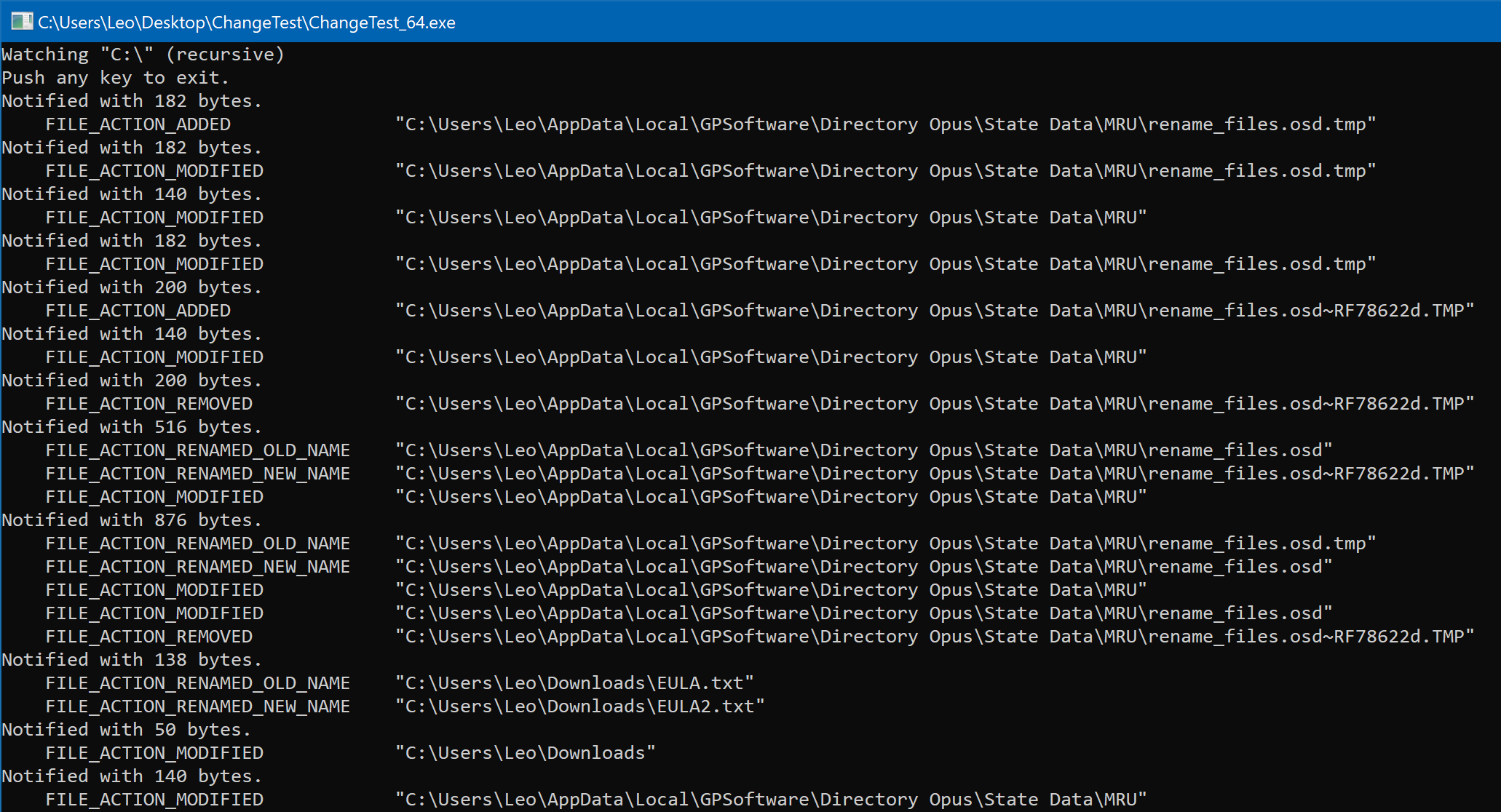
Easier than making playlists and shortcuts by hand after ripping a load of CDs. It does exactly what I needed but not much more so let me know if there's any minor changes that would make it more useful to you. While it checks for .m3u8 files to avoid creating duplicate .m3u versions, it doesn't create .m3u8 files or handle non-ASCII characters in filenames properly. I've only needed that for two albums so far and did those by hand. Change Test 1.0.0.0ChangeTest_1000.zip (22KB) Change Test is for testing that the Windows filesystem change notification API (ReadDirectoryChangesW) is working correctly. There are other tools for monitoring and recording filesystem events. This is not intended to replace those. The aim is to keep the source code (included) as simple as possible and just report the raw details of what the API says is happening. Included in the zip are 32-bit and 64-bit versions of the program. Use whichever matches the situation you are trying to diagnose. If you're diagnosing problems that affect a particular program (e.g. dopus.exe), it may make sense to rename the ChangeTest_XX.exe to the same as the program's exe name, in case antivirus is part of the problem and is keying off the exe name for how to treat each program. (That won't always make antivirus treat something the same way, but it's worth a try.) If you run the program without an arguments, it will monitor C:\ recursively. You can also pass a directory path to the program to tell it to monitor that instead of C:\. Remember to put quotes around paths that contain spaces. e.g. "C:\Program Files" You can also pass the NoRecurse argument to only monitor for changes directly below the specified directory, and not in sub-directories. Examples:
    ChangeText_64.exe
    ChangeText_64.exe D:\Test
    ChangeText_64.exe C:\ NoRecurse
    ChangeText_64.exe "C:\Program Files"
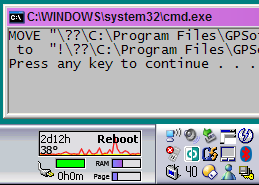
Pass any of -h, -help, -?, /h, /help, /?, h, help, or ? to the program to get it to print out similar usage information. While the program is monitoring changes, push any key to tell it to quit (or just close the command prompt window). The output should look something like this:
Clear Icon Cache 1.1.0.0ClearIconCache_1100_antivirusvendorsaretrash.7z (59B) The password for the encrypted archive is: antivirusvendorsaretrash (This is now distributed as an encrypted 7z archive due to a few antivirus vendors, from about 2020 onwards, misdetecting it as various different trojans or some other nonsense, despite the fact it's nothing of the sort and the file hadn't changed in 10 years. I got sick of contacting them to tells them their detections were wrong (which they often promise to fix, but then they break them again). It's not my responsibility for fix trash antivirus vendors' garbage products. If your antivirus thinks this is a virus, I recommend using a better one and voting with your wallet. People giving away software for free don't have time for the endless BS of snake-oil salesmen wasting our time and telling people we're the ones providing malware when it's THEIR products that will stop your computer from funcitoning properly. If you don't trust the file, feel free not to use it, but it comes with source code which you can inspect yourself, and you can compile your own copy of the exe and then upload it to virustotal to see all the stupid antivirus that thinks it's a virus for unknown reasons they won't even tell you, and which you won't find in the source code, because it's not a virus, or a trojan, or anything else.) Clear Icon Cache will cleanly exit Windows Explorer (and Directory Opus, if you use it), delete the shell icon cache (IconCache*.db) and localized thumbnail cache (ThumbCache*.db) and then restart Explorer (and Opus). Windows is full of icon-caching bugs which mean it frequently shows incorrect, missing or out-of-date icons for programs and shortcuts on the desktop, taskbar, start menu, etc. When that happens, simply running this tool will usually fix things. There are lots of guides on the web about how to do this manually but many of them have the details wrong. Even the good guides almost never tell you how to cleanly exit Explorer and are too complex for many users. (As well as using Task Manager and/or Command Prompts, it is vital that you stop Explorer, delete the file, then restart Explorer in the correct order; mixing up the steps means nothing happens.) With Clear Icon Cache you just double-click the program and it takes care of the details for you. Clear Icon Cache is for Windows Vista, Windows 7, Windows 8 and Windows 10 (and hopefully above). If you are using Windows XP, you can use TweakUI instead. To prevent message-boxes telling you if the program succeeded or failed, run ClearIconCache.exe /QUIET History
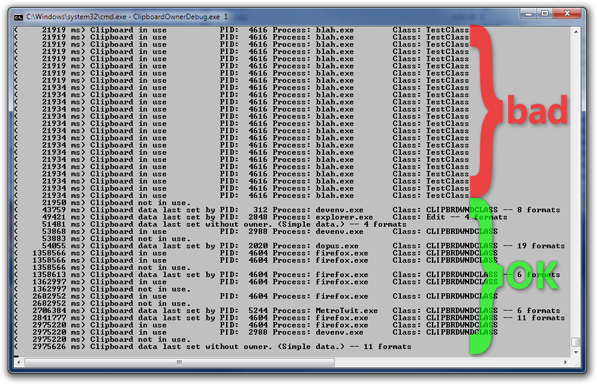
Clipboard Owner Debug 1.0.0.1ClipboardOwnerDebug_1001.zip (48KB) (PGP Sig) ClipboardOwnerDebug is a tool for debugging problems with the Windows clipboard, specifically with apps that open the clipboard and do not close it in a timely manner so that you're unable to copy or paste anything. The tool should be run from a command prompt, giving it an interval time (in milliseconds) to tell it how often to poll. It will then report changes to the clipboard and which apps it notices using the clipboard. It is normal, especially if you set a very short interval time, to see reports of different programs using the clipboard for short periods of time (especially just after you change what's in it). There's only a problem if you see lots of "clipboard in use" lines in a row all mentioning the same exe, with no "clipboard not in use" lines in between. The tool also periodically confirms that it can open the clipboard as well as which app last put data on the clipboard (if the data has an owner; simple text/bitmap data usually doesn't).
ConnectOpenVPN 1.0.0.1ConnectOpenVPN_1001.zip (169KB) (This tool controls connections made using the OpenVPN client. For a similar tool that works with the Windows built-in VPN client, see ConnectVPN, below.) ConnectOpenVPN is a tiny command-line tool which can be used to automate connection to and disconnection from VPNs using the OpenVPN client. It is intended for use in scripts which need to wait for the VPN connection to establish before continuing, and which need to test if a connection already exists or to always request a connection without triggering unwanted UIs if it already exists. When asked to connect, the tool checks if a specified OpenVPN connection is already established and, if it isn't, runs openvpn-gui.exe to make the connection (and request any passwords, if applicable). The openvpn-gui.exe connection UI then appears so you can see what it is doing, and ConnectOpenVPN waits for it to close and for the connection to complete (or fail). If the VPN is already connected then ConnectOpenVPN exits immediately without running openvpn-gui.exe at all. You can use ConnectOpenVPN to ensure you are connected to your VPN before continuing with something else. For example, you can use ConnectOpenVPN with TortoiseSVN if you need to be connected to a VPN to access your source-code repository. (To do that, create a .bat file which calls ConnectOpenVPN with the name of your VPN and then tell TortoiseSVN to run it via the pre-connect, pre-commit or pre-update hook scripts.) ConnectOpenVPN can also be used to disconnect from the VPN, as well as to test whether or not the VPN is connected. A standard success/fail exit code is returned by the program so that scripts can bail out or take other actions on failures. Note that you cannot (at the time of writing) do these things with openvpn-gui.exe on its own. If your script ran openvpn-gui.exe directly, it would not wait for the connection attempt to complete before continuing, and would not know if it was successful or not. Also, if your script asks openvpn-gui.exe to connect when already connected then a status UI would appear which you would then have to close manually. ConnectOpenVPN acts as a wrapper around openvpn-gui.exe to solve these problems. ConnectOpenVPN has been tested with Windows 10 x64 and should work with any 32-bit or 64-bit version of Windows from Vista up. (Windows XP is not supported; it's time to move on.) ConnectOpenVPN has been tested with OpenVPN GUI 11.13.0.0, part of OpenVPN 2.4.7 (21/Feb/2019). Command-Line Arguments: (Run the tool with no arguments to see similar information.)
Examples: ConnectOpenVPN.exe /connect /adapter "OpenVPN" /config "MyVPN.ovpn" ConnectOpenVPN.exe /disconnect /adapter "OpenVPN" /config "MyVPN.ovpn" ConnectOpenVPN.exe /test /adapter "OpenVPN" If nothing seems to happen or it doesn't work properly, add the /verbose switch to work out what's going wrong. For example: C:\> ConnectOpenVPN.exe /connect /adapter "OpenVPN" /config "MyVPN.ovpn" /verbose ConnectOpenVPN: Checking state of "OpenVPN" network adapter... ConnectOpenVPN: "OpenVPN" network adapter is not connected. ConnectOpenVPN: Running: "C:\Program Files\OpenVPN\bin\openvpn-gui.exe" --command connect "MyVPN.ovpn" ConnectOpenVPN: Waiting for OpenVPN GUI to appear... ConnectOpenVPN: OpenVPN GUI found. ConnectOpenVPN: Waiting for OpenVPN GUI to close... ConnectOpenVPN: OpenVPN GUI closed. ConnectOpenVPN: Waiting for/confirming VPN connection exists... ConnectOpenVPN: Connected. ConnectOpenVPN: CONNECT action finshed. History
ConnectVPN 1.0.0.2cConnectVPN_1002c.zip (296KB) (This tool controls connections made using the Windows built-in VPN client. For a similar tool that works with the OpenVPN client, see ConnectOpenVPN, above.) ConnectVPN is a tiny command-line tool which checks if a specified RAS or VPN connection is established and, if it isn't, displays the standard connection GUI and waits for the connection to finish (or fail). If the RAS/VPN is already connected then the program exits immediately. You can use ConnectVPN to ensure you are connected to your VPN before continuing with something else. For example, you can use ConnectVPN with TortoiseSVN if you need to be connected to a VPN to access your source-code repository. (To do that, create a .bat file which calls ConnectVPN with the name of your VPN and then tell TortoiseSVN to run it via the pre-connect, pre-commit or pre-update hook scripts.) Using ConnectVPN is different to scripting RasDial.exe in a couple of ways: First, if you are not connected then you will see the standard Windows connection prompts and progress dialogs instead of command-line messages. Second, you will not be prompted or bothered at all if the VPN is already connected, even if the VPN configuration does not store credentials. ConnectVPN comes in two flavours: ConnectVPN.exe is compiled as a console app, and suited to running from scripts and batch files that use a command prompt (or redirection) to display their output. ConnectVPN-UI.exe is compiled as a GUI app, and best suited to everything else. If you get unwanted command prompt windows appearing, switch to the GUI version. Usage of both is exactly the same. (High DPI note: ConnectVPN-UI.exe is flagged DPI-Aware. On Windows 10 there is a bug in the RasDialDlg API where the icon while connecting will be tiny and cropped. This is a bug in Windows and not the program. I could have flagged the exe as not DPI-Aware, but then all the text is scaled, which is probably worse than the progress icon looking wrong.) Windows 10 1809 important: You must use the 64-bit versions if on a 64-bit OS, otherwise you will trigger a bug introduced in Windows 10 1809 where connecting to "split tunnel" VPNs (i.e. ones not set to "use as default gateway") will render all internet-bound traffic unroutable. (Thanks, Microsoft!) Usage: ConnectVPN.exe <name of RAS/VPN connection> Examples: ConnectVPN.exe WorkVPN ConnectVPN.exe "Work Network" History
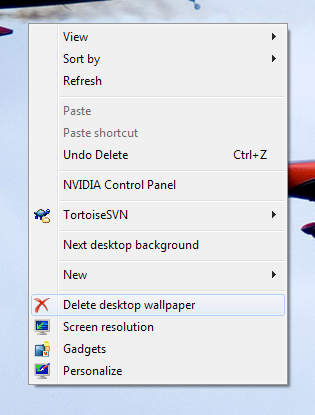
Delete Desktop Wallpaper 1.0.0.0DeleteWallpaper.zip (2KB) (PGP Sig)
DeleteWallpaper.vbs is a little script that's intended to run via your Desktop context menu. (Simple installation instructions are included in the zip.) The script provides an easy way to delete the current wallpaper using the recycle bin. It's most likely to be useful for people who use Windows 7's wallpaper slideshow feature as it lets you delete images you don't like when they cycle around. It has only been tested on Windows 7 (RTM x64) and may not work with earlier versions of Windows. It's probably not useful on earlier versions of Windows anyway. DirFlatten 1.0.0.1DirFlatten1001.zip (51KB) (PGP Sig) DirFlatten will recurse through a directory structure and move all files to the initial directory, renaming them in a way which means they will not clash with each other. This is something I hacked together so that I could use wget to mirror bits of web sites and then not have to sift through directory hierarchies. These days I usually use one of Directory Opus's Flat View modes to see the folder and sub-folder contents together instead of moving things around with DirFlatten. Example:
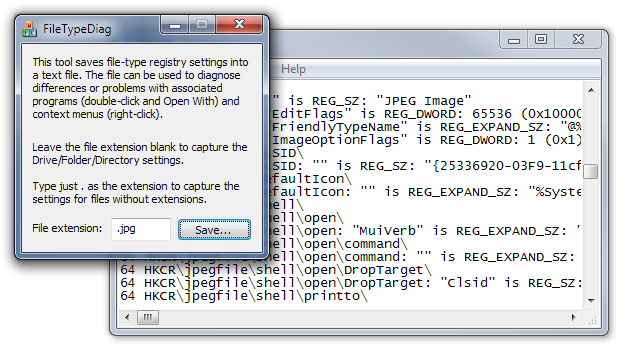
FileTypeDiag 1.0.0.7FileTypeDiag1007.zip (235KB) (PGP Sig) FileTypeDiag is tool to help diagnose problems or differences with file-types on different machines. For example, it can help see why the "wrong" program launches when a file is double-clicked. You give the program a file extension (or leave it blank to save details about folders/directories) and it will create a text file containing the registry settings which relate to that file-type. The output includes both 32-bit and 64-bit registry SAMs1 as well as separate logs of HKCU, HKLM and the merged HKCR. The "*" file-type is always included in addition to the specified type. ProgIDs are searched, including via the OpenWith lists and Explorer's extension mappings. When the extension is left blank the tool will save both the Folder and Directory file-types to the same file. (1: Logging both 32-bit and 64-bit SAMs is probably overkill, since the HKCR part of the registry should not be virtualised for 32-bit processes, but it doesn't hurt to be thorough and it's easy to ignore the extra data. Also, the program may log some Explorer settings from areas that are virtualised.)
History
LaunchViaLabel 1.0.0.0LaunchViaLabel100.zip (1KB) (PGP Sig) LaunchViaLabel.vbs is a script you can use to run a command on a particular drive, looking up the drive via its label. It can be useful when you want to launch something from a USB drive which doesn't always have the same letter. You should run the script with at least two arguments. The first argument is the label of the drive you want to look up. The rest of the arguments are the command you want to run. Any occurrences of __DRIVE__ in the arguments will be replaced with the drive letter (e.g. "X:").
Alternative version: GoingPostal, a member of the Directory Opus user forums, has extended my script, adding the ability to run commands with redirected output and to pause the output of DOS commands which are run using the script. You can get his version of the script from the Launch via Label thread at the Opus forums. LoadString 1.0.0.2LoadString1002.zip (68KB) (PGP Sig) LoadString.exe will print a string resource from a DLL file. For example, if you see something like @%SystemRoot%\system32\shell32.dll,-9227 in the registry and want to know what that string actually is you can use this tool to find out. Strings like that are common in the registry on Windows Vista, due to the way localisation works, which can make things difficult when you are trying to diagnose what's in the registry. Usage: LoadString.exe <path to dll> <resource id> Examples: > LoadString.exe %SystemRoot%\system32\shell32.dll -9227 String resource = "Documents" > LoadString.exe %SystemRoot%\system32\shell32.dll -30598 String resource = "PNG Image" > LoadString.exe "%ProgramFiles%\Windows Mail\msoeres.dll" -7496 String resource = "Email Previewer" The zip contains both 32-bit and 64-bit versions. On 32-bit Windows, just use the 32-bit one. On 64-bit Windows it usually doesn't matter which one you use but if the DLL can't be found with one version try with the other. (It's likely this will only happen due to different env-var expansion in the DLL paths rather than due to the DLLs themselves.) History
ListPFRO 1.0.0.3ListPFRO1003.zip (35KB) ListPFRO will list the pending file rename operations, showing you which files will be moved or deleted during the next reboot. Normally you should run ListPFRO with no arguments to see details of pending moves and deletes. You can also add the "terse" argument (i.e. ListPFRO.exe terse) to make the program print either "Reboot", if there are any pending operations, or nothing at all if there are none. I used to use this as part of my Samurize meter to give a quick on-screen indication that a reboot was needed. (Clicking the Reboot label then ran ListPFRO without arguments in a new window so I could see the full list.)
History
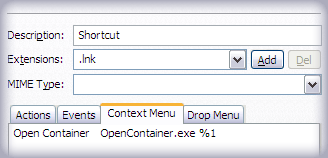
Alternative tool The SysInternals PendMoves tool is very similar. If you already use a bunch of their tools then you might prefer to use theirs instead of mine. I don't mind! :-) OpenContainer (By Jonathan Potter)opencont.zip (14KB) (PGP Sig) Command-line program which, when given a .lnk (shortcut) file, will open the parent directory of the pointed-to file. I used to use this on an Opus filetype context menu so that I could jump to the file a shortcut points to:
(Unlike the other things on this page, I didn't write this. Jon made it a while ago and I find it useful and figure other people may too, so here it is.) This functionality is now built-in to Opus (8.0.3.2) which also allows things like "Go NEWTAB=nofocus OPENCONTAINER=target" to open the containers of all selected shortcuts into new tabs. RestartViaManager 1.0.0.2RestartViaManager1002.zip (60KB) Command-line tool which will ask a program or part of the operating system to restart, using the Restart Manager API which is part of Windows. For this to work, the program you are restarting must have opted in to the Restart Manager. Most programs do not do this, but some of the more important ones do. Using this is better than killing the process and re-running it:
Usage: RestartViaManager "<full path of program to restart>" [QUIET] RestartViaManager <PID of process to restart> [QUIET] The optional QUIET argument prevents anything being printed if the shutdown and restart requests are successful. If you specify a PID (process ID), it can be decimal (no prefix) or hex (prefix with "0x"). This example will restart Explorer, including the desktop: RestartViaManager "C:\Windows\Explorer.exe" This example will restart Directory Opus, and print nothing if successful: RestartViaManager "C:\Program Files\GPSoftware\Directory Opus\dopus.exe" QUIET This example will restart the process with PID 7531: RestartViaManager 7531 This example will restart the process with PID 0x1D6B (i.e. 7531 again), and print nothing if successful: RestartViaManager 0x1D6B QUIET History
ScreenSave 1.2.0.0ScreenSave1200.zip (64KB) (PGP Sig) Command-line program which can:
Personally, I've put the program on an Opus toolbar button for when I go out or go to bed. When I'm going to bed the delay arguments mean I can use the light from my monitors to find my duvet and avoid tripping over the cat before I'm plunged into darkness. When I'm going out I can make the monitors turn off immediately to avoid wasting power. The options to prevent the screen saver and power-off may be useful for presentations (though a lot of presentation software will disable those things by itself.) The ability to prevent a system from sleeping or hibernating can be useful when you need to leave a computer on but unattended, performing a task that will not prevent shutdown of the machine by itself. (Of course, you can disable your screensaver and sleep/hibernate timers via Control Panel. The tool is for when you need to control them via a script or similar.) Usage: ScreenSave [/delay [number of seconds]] [/screensaver] [/lowpower] [/poweroff] /delay defaults to 10 seconds if no number given. You can give multiple /delay arguments. For example, this will wait 10 sec then run the screen saver, wait another 20 sec, then turn off the monitor: ScreenSave /delay 10 /screensaver /delay 20 /poweroff Monitor power-off will not lock your workstation by itself. If your screensaver is configured to lock the computer then you can use the command below to immediately turn your monitors off and lock the machine: ScreenSave /screensaver /poweroff You can also enable/disable the screensaver, monitor power-off and system sleep/hibernation: ScreenSave /disableSaver
ScreenSave /enableSaver
ScreenSave /disablePowerOff
ScreenSave /enablePowerOff
ScreenSave /disableSleep
ScreenSave /enableSleep
Those options can be combined. For example: ScreenSave /disableSaver /disablePowerOff /disableSleep If you disable sleep/hibernation with /disableSleep then a copy of ScreenSave.exe will run in the background until you enable it again with /enableSleep. The background process will consume virtually no memory or CPU. This is similarly true if you disable monitor power-off. Calls to /disablePowerOff and /disableSleep will nest. You must call the respective /enable* commands an equal number of times to undo them. On the other hand, calls to /disableSaver do not nest. History
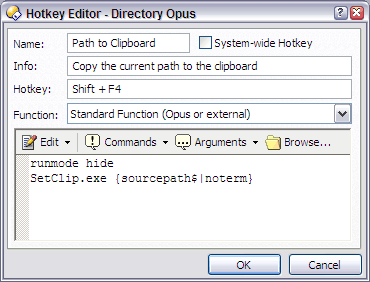
Alternative tool NirSoft's NirCmd can trigger the screensaver as well. Might be worth checking out if my ScreenSave tool doesn't do quite what you want. SetClip 1.2.0.1SetClip1201.zip (59KB) (PGP Sig) Command-line program which puts either a file or whatever arguments you give it into the clipboard. Usage 1: SetClip [-l] [-a] [--] <arg1> <arg2> ... The arguments will be put in the clipboard with each one on a new line. Use quotes around arguments containing spaces that you want on the same line. Use "" for a blank line. Give the -l argument to output everything on one line instead. Give the -a argument to append to any existing clipboard text. Give the -- argument if you want to actually put "-l", "-f", "-e", "-a" or "--" into the clipboard. Usage 2: SetClip -f [-l] [-a] [--] <filename> The file will be read and put into the clipboard as text. Give the -l argument to avoid adding a return when appending to existing text. Give the -a argument to append to any existing clipboard text. Usage 3: SetClip -e The clipboard will be emptied. If you use SetClip within Directory Opus functions to copy directory paths then you may find you have to add the "noterm" argument to stop Opus from adding a trailing slash to the end of the path. If a path is quoted and ends in a slash it seems to confuse SetClip's command-line parsing. This behaviour is not Opus-specific but a "feature" of either the Microsoft C-runtime used by SetClip or the parsing in the Windows cmd.exe. If you're using SetClip outside of Opus and actually need a slash at the end then you have to double it up for some reason, if it's before a quote.
Note 1: The "noterm" option was added in Opus 8.0.1.0 and won't work in earlier versions. Note 2: Directory Opus 9 added a new, built-in Clipboard SET command which makes SetClip.exe largely obsolete. SetClip is still useful for a few things (changing the clipboard from outside of Opus; putting files (rather than command-line arguments) into the clipboard; splitting the clipboard text into multiple lines; emptying the clipboard) but for the majority of cases the built-in Clipboard SET command handles the job without the need for an extra exe. Example Directory Opus button (or hotkey) which copies the contents of the selected files to the clipboard: @runmode hide
"C:\Windows\System32\SetClip.exe" -e
"C:\Windows\System32\SetClip.exe" -f -a {filepath$}
Here's the Opus button in XML format so that you can paste it straight from your browser to your Opus toolbar, as described in detail at the Opus forums: <?xml version="1.0"?>
<button display="both">
<label>Contents to Clipboard</label>
<tip>Copies the contents of the selected text files to the clipboard</tip>
<icon1>#clipcopy</icon1>
<function type="batch">
<instruction>@runmode hide</instruction>
<instruction>"C:\Windows\System32\SetClip.exe" -e</instruction>
<instruction>"C:\Windows\System32\SetClip.exe" -f -a {filepath$}</instruction>
</function>
</button>
Both versions of the button assume that SetClip.exe is in C:\Windows\System32; if it isn't then you should make the obvious edits. Alternative tool NirSoft's NirCmd can do similar things with the clipboard as well. Might be worth checking out if my SetClip tool doesn't do quite what you want. Turn On Cursor ShadowsTurnOnCursorShadows.zip (21KB) Running TurnOnCursorShadows.exe has the same effect as going to Start -> Control Panel -> Hardware and Sound -> Mouse -> Pointers and turning on Enable pointer shadow. I wrote this little thing because 3D games keep turning off the pointer shadow when you run them and leave it off after you exit them. Presumably this was some kind of optimisation back in the days when hardware was so slow it would make the slightest difference, but I have no idea why it is still done today and why nobody has fixed the games (or GPU drivers or OS itself, whatever idiot thing is responsible :)) so it is put back when the game is exited or loses focus. Sigh. Rather than go into the control panel every time I quit a game, I put this on my Directory Opus taskbar-style launcher toolbar to make the change in one click. It's on a button which also runs Turn On Window Shadows, below. Turn On Window ShadowsTurnOnWindowShadows.zip (33KB) (PGP Sig) If another human on planet earth finds this useful I'll be amazed. :-) Running TurnOnWindowShadows.exe has the same effect as going to Start -> Control Panel -> System and Security -> System -> Advanced system settings -> (UAC) Yes -> Advanced -> (Performance) Settings -> Visual Effects and turning on Show shadows under windows. I wrote this little thing because I use Window Clippings v3 to take screenshots and whenever I take a screenshot while using Remote Desktop it turns off the system shadow setting. The shadow setting has no effect on Remote Desktop so it's not immediately clear anything is wrong but when I return to using the machine locally all the window shadows are gone, which is just weird with the Aero/glass theme. I got sick of going through the convoluted route above to turn shadows back on and made a program I could drop on my Directory Opus taskbar-style launcher toolbar to make the change in one click. The same button also runs Turn On Cursor Shadows, above. UniqueNames 1.0.0.1UniqueNames.zip (36KB) (PGP Sig) UniqueNames will scan a directory hierarchy and ensure that all filenames within it are unique. If this isn't the case then clashing files will be renamed by adding "_x" to their end (before the extension if there is one) where x is a number. It's a bit like DirFlatten, above, except that it keeps the directory hierarchy and renames things differently. WaitDel 1.0.0.1WaitDel1001.zip (29KB) (PGP Sig) Command-line program which waits a given amount of time for a list of files to appear in a directory, deleting each file as it appears (or immediately if it's there from the start). I wrote this simple program because every time I logged on to my work computer a load of unwanted shortcut icons were dumped on my desktop. I made a batch file which ran WaitDel on startup so the files were deleted after they appeared. Usage: WaitDel <directory> <wait seconds> <filename> [filename...] Example: WaitDel "C:\Documents and Settings\LeoD\Desktop" 15 "Acrobat Distiller 5.0.LNK" "Lotus Notes 6.5.LNK" | ||||||||||||||||||||||||||||||||
| Contents // Miscellaneous Software |  |
| |
 |